
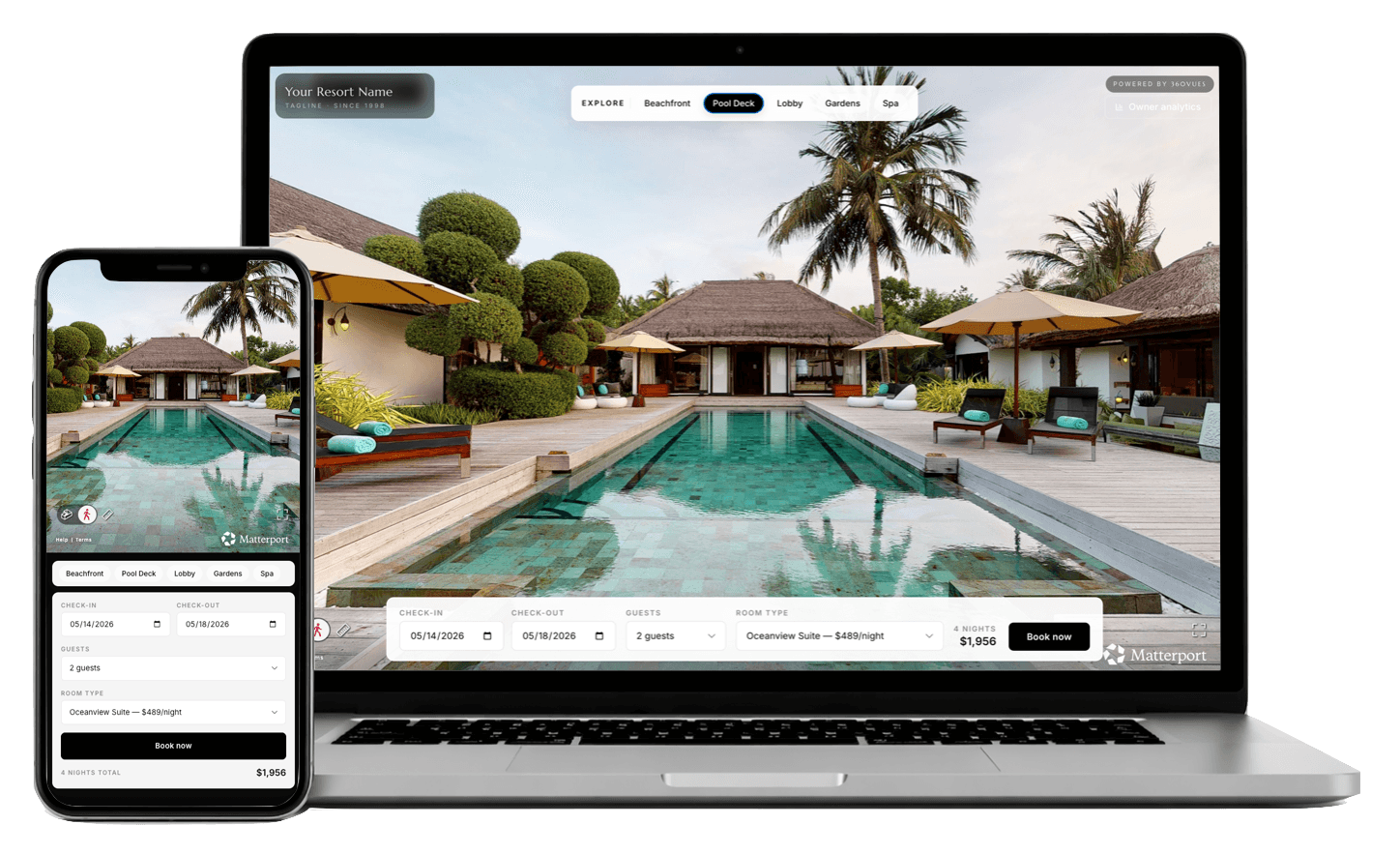
TL;DR — Cloudbeds is one of the friendliest booking engines for embedded 3D tours, but the default iframe height (300px) breaks the experience on mobile. The 10-minute setup: grab the Matterport iframe code, paste it into the Cloudbeds Sites custom HTML block (or the room description rich-text editor), wrap it in a responsive container, and verify the mobile fallback. Total time from start to live: under 10 minutes for properties already on Cloudbeds Sites.
This is a working how-to for two surfaces: the Cloudbeds Sites website builder (which most Cloudbeds customers use as their primary website) and the Cloudbeds booking engine room detail pages. The instructions diverge slightly between the two; both are covered.
Before You Start
You need:
- A published Matterport space. Get the iframe URL from the Matterport workshop: open the model → Share → Embed → copy the
<iframe>snippet. - Admin access to your Cloudbeds property.
- The room ID for each room type you want the tour to appear on (Cloudbeds calls these "Room Types," found under Configuration → Rooms).
A clean Matterport iframe snippet looks like:
`
<iframe width='853' height='480' src='https://my.matterport.com/show/?m=YOURMODELID&play=1' frameborder='0' allowfullscreen allow='xr-spatial-tracking'></iframe>
`
The fixed width='853' and height='480' are the default Matterport gives you. They are also what's about to break your mobile experience. Don't skip the responsive wrapper step below.
Path A — Cloudbeds Sites Website Builder
This is the path 70%+ of Cloudbeds customers use, since Sites is bundled with most plans.
Step 1. In Cloudbeds, navigate to Marketing → Cloudbeds Sites → Edit Site.
Step 2. Pick the page where the tour should live. Best practices: - A dedicated Tour page that links from the main nav. This is the highest-converting placement. - Embedded on each Room Type detail page below the photo gallery. - A featured embed on the Homepage below the hero, above the room grid.
For most boutique properties under 30 keys, the dedicated tour page beats per-room embeds because mobile users won't scroll through five separate iframes.
Step 3. Add a Custom HTML block where the tour should sit.
Step 4. Paste the responsive wrapper plus the Matterport iframe:
`
<div style="position:relative;padding-bottom:56.25%;height:0;overflow:hidden;max-width:100%;border-radius:12px;">
<iframe
src="https://my.matterport.com/show/?m=YOURMODELID&play=1"
style="position:absolute;top:0;left:0;width:100%;height:100%;border:0;"
allowfullscreen
allow="xr-spatial-tracking; fullscreen"
loading="lazy">
</iframe>
</div>
`
The padding-bottom:56.25% keeps the iframe at a 16:9 ratio at any viewport width. loading="lazy" means the iframe doesn't load on first paint — critical for conversion-page speed.
Step 5. Save and publish. View the page on a real phone (not the Cloudbeds preview, which lies about mobile rendering).
Path B — Cloudbeds Booking Engine Room Descriptions
If you don't use Cloudbeds Sites and run your own website with the Cloudbeds booking engine embedded, the tour goes in the Room Type description field instead.
Step 1. Configuration → Rooms → click into a Room Type.
Step 2. In the Long Description rich-text editor, click the source-code (</>) button to switch to HTML mode. If you don't see it, click the three-dot overflow menu in the toolbar.
Step 3. Paste the same responsive iframe wrapper as Path A, scaled down so it doesn't dominate the room description:
`
<div style="position:relative;padding-bottom:56.25%;height:0;overflow:hidden;max-width:600px;margin:1.5rem 0;border-radius:8px;">
<iframe
src="https://my.matterport.com/show/?m=YOURMODELID&play=1&qs=1"
style="position:absolute;top:0;left:0;width:100%;height:100%;border:0;"
allowfullscreen
allow="xr-spatial-tracking; fullscreen"
loading="lazy">
</iframe>
</div>
`
The &qs=1 parameter starts the tour in dollhouse view, which makes a smaller embed read better on mobile.
Step 4. Save. The booking engine will render the embed inline whenever a guest expands the room description.
The Mobile Sizing Gotcha
Most operators paste the raw Matterport snippet (width='853' height='480') and ship. Three things break:
- On phones narrower than 853px, the iframe overflows the page and forces horizontal scroll on the entire site.
- The fixed pixel height crops the dollhouse view on landscape tablets.
- No lazy-loading means the tour starts downloading on first paint, slowing the entire page Lighthouse score by 15–30 points.
The responsive wrapper above fixes all three. padding-bottom:56.25% is the key — it forces a 16:9 aspect ratio that scales to any viewport width.
Where to Place the Tour for Maximum Conversion
Cloudbeds-specific best practices, based on aggregated boutique client data:
| Placement | Direct conversion lift |
|---|---|
| Dedicated /tour page linked from main nav | +9% to +14% |
| Embedded below room photos on each Room Type page | +6% to +11% |
| Homepage hero embed (autoplay muted) | +4% to +9% |
| Booking engine room description (Path B) | +3% to +7% |
The dedicated tour page wins because it's the surface most users land on from a Booking.com listing deep-link — and that's the highest-intent inbound traffic you have.
Verifying It Works
Five-minute QA before you call it done:
- Open the page on a 6.1" phone in portrait. Iframe scales to viewport, no horizontal scroll.
- Tap into the tour. Spinner appears within 1 second; first frame within 4 seconds on 4G.
- Exit fullscreen. Page returns to scroll position, booking widget still visible.
- Run Lighthouse on the page. LCP under 2.5s, CLS under 0.1.
- Confirm the booking widget below the tour pre-fills dates correctly when a guest arrives with a referrer from your member rate landing page.
What's Next
Once the tour is live, the conversion math depends on what you do with the traffic. Run the net ADR analysis on your direct mix at 30, 60, and 90 days post-launch — the lift shows up there before it shows up in headline RevPAR.
About 360VUES — Matterport 3D capture and virtual tour production for boutique hotels on Cloudbeds, Mews, SiteMinder, and Stayntouch.